TextReveal Dashboards
Set up your TextReveal account, then look up a company, read its controversy page and review your portfolios in the TextReveal Dashboards.
The TextReveal Dashboards let you explore companies and portfolios without writing code. This guide walks you through setting up your account and exploring the data of the Event Monitoring module. To request an AI Report from the Dashboards, see AI Report.
Set up your account
1. Log in and set your language
You received an email with a link to set your password. The link is valid for 48 hours.
If your link has expired, use Forgot Password on the login page or contact your SESAMm account manager.
Log in to the TextReveal Dashboards at dashboards.textreveal.com, then open Account Settings to pick your interface language. Japanese, French, German, Spanish and other languages are supported.
2. Enable article translation
In Account Settings, turn on auto-translation. Articles are then automatically translated into your preferred language, whatever their original language.
Explore the data
3. Look up a company
- Type a company name in the search bar.
- Use the description, website and identifiers to check you have the right company.
- Click it to open its controversy page.
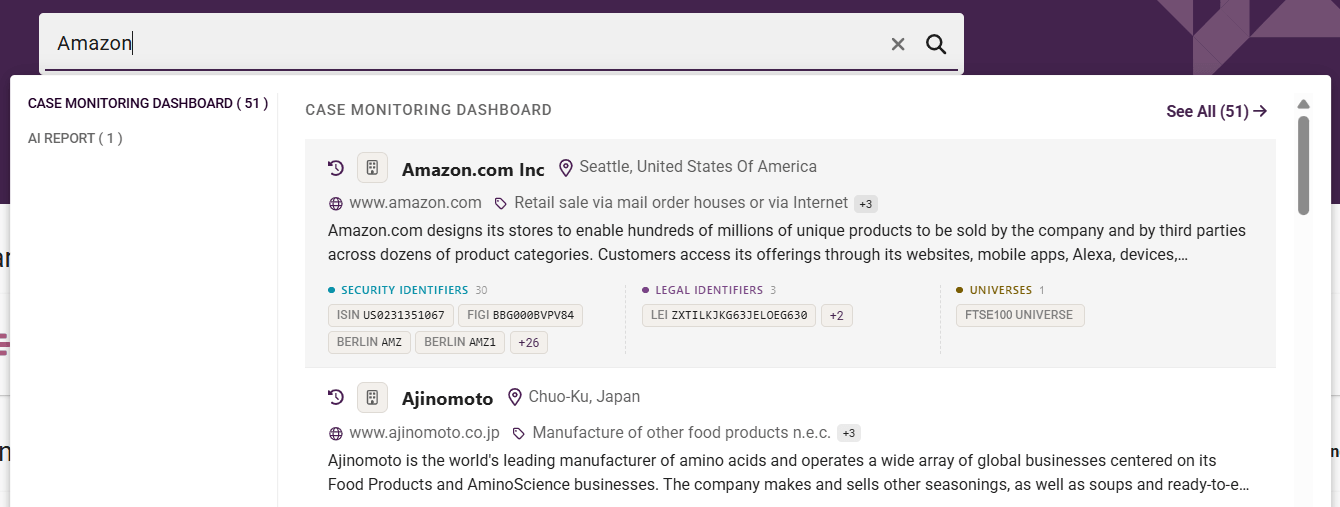
Can't find a company? Click Ask SESAMm to add entity to your coverage and we'll add it for you.
4. Read a company's controversy page
The Case Monitoring page gives you an overview of a company's ESG controversies:
- Controversy Overview: an AI summary of the main ESG topics affecting the company.
- Controversy Exposure graph: the company's CES (0–100) over time, with events grouped by intensity score. The higher the score, the higher the exposure.
- Case list: the company's ESG controversies, organized as cases. Each case contains events, and each event contains the source articles.
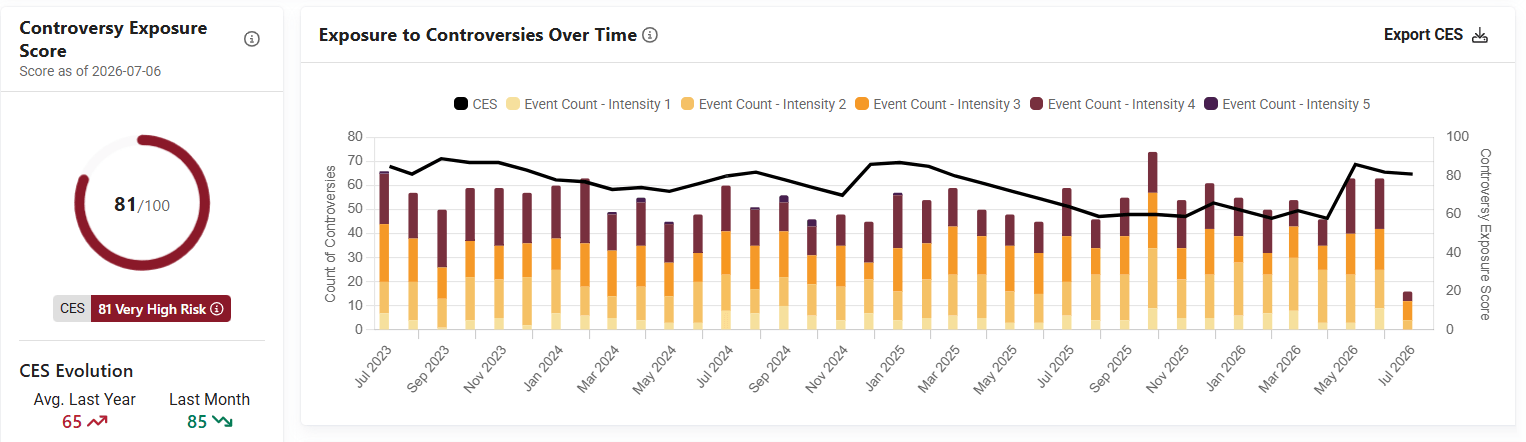
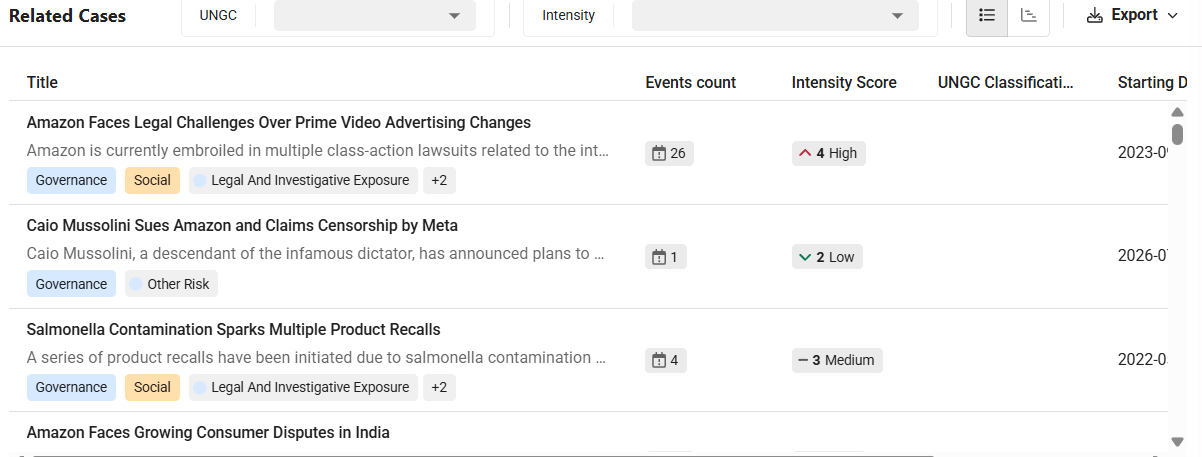
Read Case, Event and Controversy Exposure Score to learn how these objects relate to each other and how scores are computed.
5. Review your portfolio
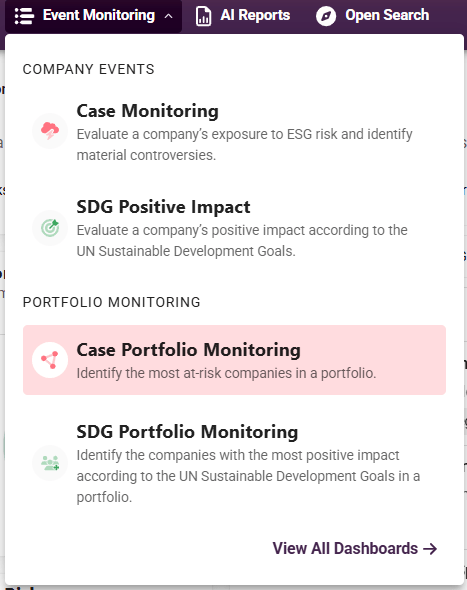
- Open the Event Monitoring menu and select Case Portfolio Monitoring.
- Pick your portfolio from the dropdown.
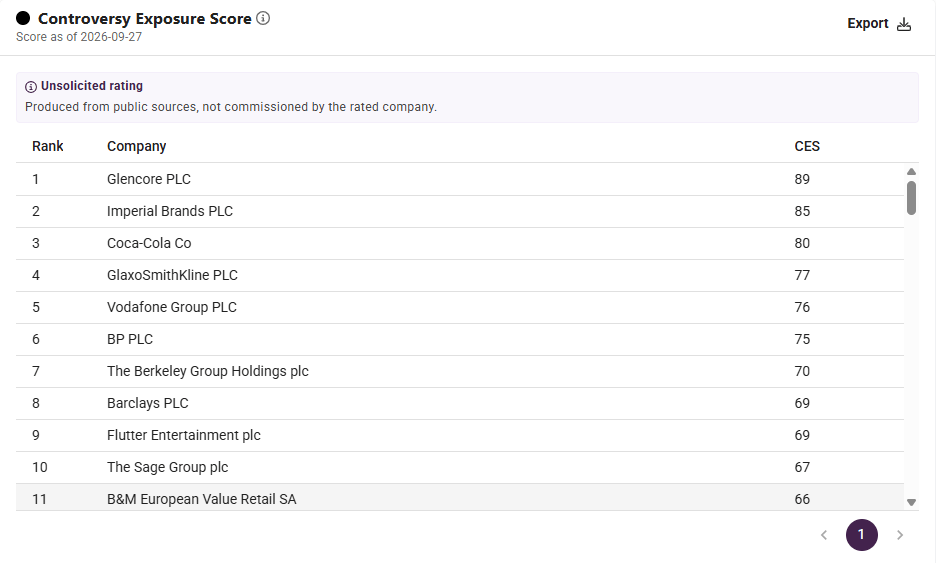
- Review the companies ranked by CES.
- Use the filters to focus on specific ESG topics or risk categories.
- Click a company name to open its Case Monitoring page.
6. Create your own portfolio (optional)
- Click the portfolio icon in the navigation bar.
- Under Custom Portfolios, click New.
- Name your portfolio and choose who can see it:
- Private: only you.
- Shared: everyone in your company.
- Add companies one by one using search, or upload a CSV file.
Portfolios and universes are the same thing: the platform calls them portfolios, the API calls them universes. Every portfolio you create in the platform is available through the universes routes, and the other way around.